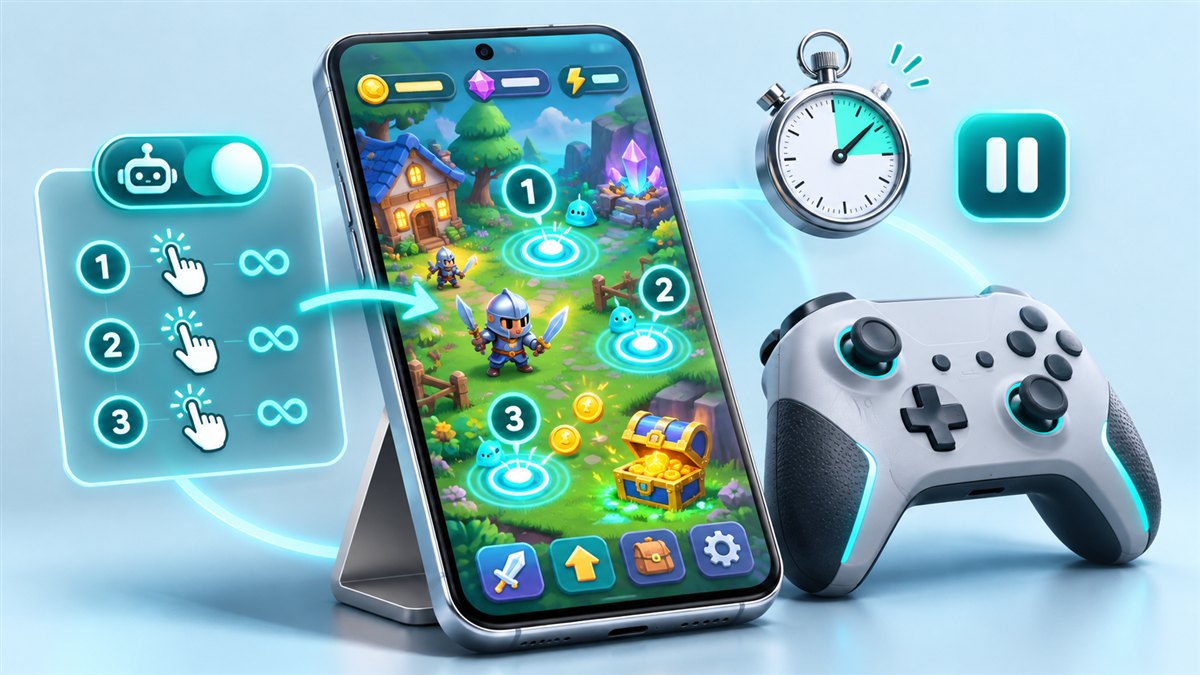
Games are the most popular reason people install an auto clicker. Searches such as “Auto Clicker app for games Mod APK 2.6.0” usually come from players who want a specific build that worked well for them. This guide shows how to set up an auto clicker for games, how to check what version you are running and when using one is a bad idea.
About the 2.6.0 version number
“2.6.0” is a version number that appears in many searches. We do not list version numbers that we cannot verify, and file names on the internet are not a reliable guide. After installing, check the real version in Settings > Apps > [the app] > App info. If you specifically want an older build, read the old version guide for the trade-offs.
Which games suit an auto clicker
- Idle and incremental games where progress depends on repeated tapping.
- Offline single-player games with repetitive collection or crafting steps.
- Casual games that you play alone and that do not prohibit automation.
When not to use an auto clicker
Many online, competitive and real-money games prohibit automation tools in their terms of service. Using an auto clicker there can lead to warnings, account suspension or lost rewards, and it is unfair to other players. Always check a game’s rules first. Read more in our fair-play guide.
Setting up an auto clicker for a game
Step 1: Plan the routine
Play the routine manually once and note each tap position and how long the game needs between steps, for example while an animation plays.
Step 2: Add targets in order
In multi-target mode, add numbered targets in the order the game expects. Place them in the centre of buttons rather than on edges.
Step 3: Set realistic intervals
Give the game time to respond. If taps arrive during a loading screen, they are lost and the sequence falls out of step. Start slow and shorten the delay gradually.
Step 4: Add a stop condition
Use a loop count or timer so the sequence ends on its own. This prevents unintended purchases or menu changes if the game shows an unexpected screen.
Step 5: Save the configuration
If your build supports saved profiles, store one per game so you do not have to place the targets again.
Recommended starting settings
| Game type | Mode | Starting interval |
|---|---|---|
| Simple idle tapper | Single target | Moderate, then adjust |
| Collect-and-upgrade loop | Multi-target | Longer delays between steps |
| Scrolling or drag actions | Swipe | Slow enough for the screen to settle |
Exact values depend on the game and your device, so treat these as starting points.
Avoiding common problems in games
- Game ignores taps: the interval is probably too short. Increase it.
- Targets drift out of place: keep the same screen orientation each time.
- Sequence stops when the screen dims: adjust the screen timeout and battery optimisation. See the troubleshooting guide.
Get the app
Check the download section for availability and follow the installation guide to set up permissions.
Design a small practice routine
Begin with an offline practice screen where repeated taps are permitted and have an obvious effect. Choose one stationary button and keep the floating controls away from it. Use a slow interval and a small repetition limit. Watch the result from start to finish before adding another target. This approach lets you distinguish a misplaced point from a timing problem. A complex routine with several moving controls makes it much harder to understand why a tap produced an unexpected result.
For a sequence with two actions, describe the intended order in plain words before placing targets. For example, tap a demonstration counter and then reset that counter. Confirm that both controls remain visible and that neither action opens another screen. If a confirmation step appears, pause and reassess the routine. A fixed sequence does not understand whether the game is ready for its next action. It repeats the same coordinates even when the scene has changed.
Account for animations and layout changes
A game can ignore a tap while a button is animating or while a panel is opening. Increasing tap speed may produce more missed actions instead of better progress. Give each transition enough time to finish, then reduce unnecessary waiting gradually while observing the result. If an animation duration varies, a fixed interval may never be fully dependable. Choose a simpler routine rather than trying to hide that uncertainty behind a large number of repeated taps.
Screen rotation, display scaling, and in-game interface settings can all move a target. A profile made in portrait orientation should not be reused blindly in landscape. Likewise, a larger button setting may alter the positions of neighboring controls. Check the layout before every session and after any settings change. Name profiles according to the game screen and orientation so that you can identify their intended use without opening each one and guessing from the target pattern.
Understand what version 2.6.0 tells you
A version string such as 2.6.0 identifies a claimed release, but it does not by itself demonstrate which features a particular package contains. Check the installed app information and compare it with the description you were given. Different modified files can use similar names. Avoid assuming that a familiar version number guarantees the same interface, compatibility, or unlocked options. The practical check is whether the installed app performs your short demonstration routine and preserves the settings you selected.
Record the profile values that work rather than relying on a suggested configuration copied from another phone. Target coordinates depend on screen size and layout, while delays depend on what the game is doing between actions. Another person's interval is a starting idea, not a guaranteed solution. If you update either app, repeat the small demonstration before loading a longer routine. A changed menu or dialog can make yesterday's successful sequence unsuitable today.
Keep testing within clear boundaries
Automation support and permission to automate are separate questions. Use only environments where the activity is allowed, and do not infer permission from the fact that taps technically work. An auto clicker does not understand fairness rules, account restrictions, or the consequences of pressing a purchase button. Keep payment screens, account actions, and competitive interactions outside your practice routine. The most useful test environment is one where a mistaken tap has a small, immediately visible, reversible result.
Conclusion
An Auto Clicker app for games works best with stationary controls, understandable timing, and a short stop limit. Verify the installed version, build one simple permitted routine, and recheck it after layout changes. Successful automation depends on predictable screens and clear boundaries, not on the fastest possible interval or a version number in a download title.
Related guides

Auto Clicker Mod APK Platinmods and Winzo Searches: Safety and Fair Play
What to know about mod forums like Platinmods, and why auto clickers do not belong in real-money games such as Winzo.
Read guide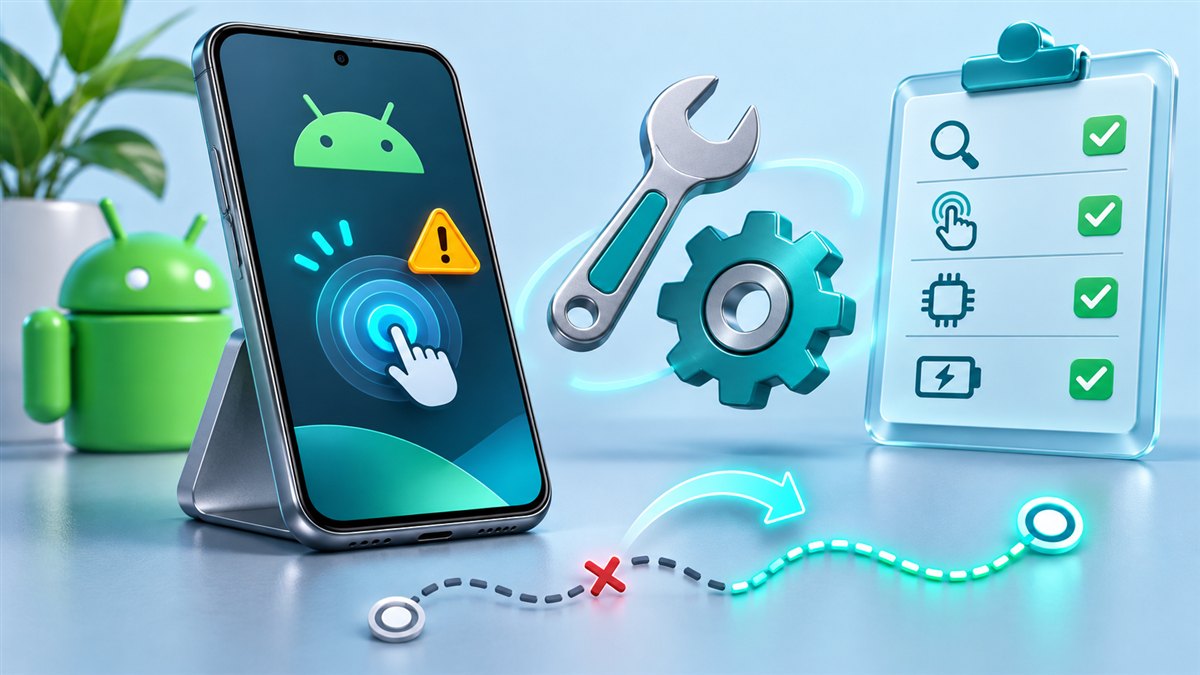
Auto Clicker Mod APK Not Working? How to Fix Common Problems
Step-by-step fixes for install errors, permission problems, missing floating panels and sequences that stop on their own.
Read guide