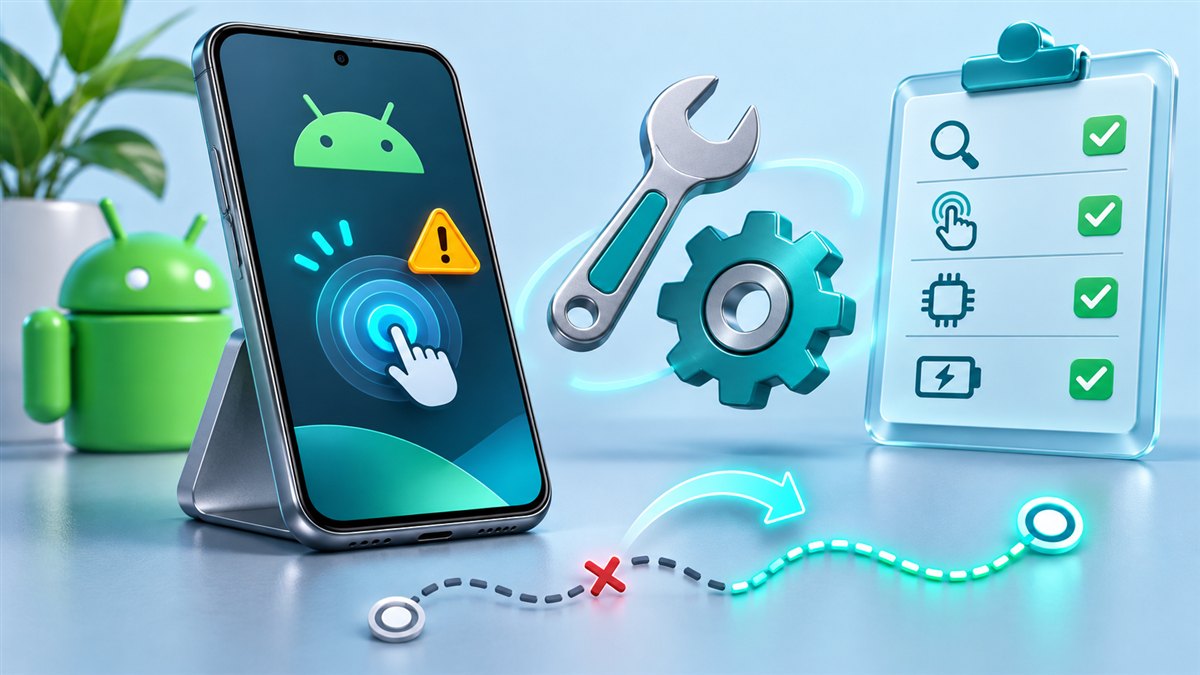
Most problems with Auto Clicker Mod APK come down to Android permissions or battery settings, not the app itself. Work through the sections below that match what you see. Each fix is safe to try and does not require root access.
“App not installed”
This message appears when Android cannot complete the installation. Common causes:
- Conflicting app already installed. If another build of the same app is installed and signed with a different key, Android refuses to replace it. Uninstall the existing app, then install again.
- Not enough storage. Free some space and retry.
- Incomplete download. Delete the file and download it again from the download section.
“There was a problem parsing the package”
This usually means the file is damaged or incomplete, or the build is not compatible with your Android version. Download the file again on a stable connection. If the error remains, the build may require a newer Android version than your device has.
Installs are blocked
If Android says installs from this source are not allowed, turn on Install unknown apps for the browser or file manager you are using. The full steps are in the installation guide.
Accessibility toggle is greyed out
On Android 13 and newer, sideloaded apps can be blocked from accessibility access as a “restricted setting”.
- Open Settings > Apps and select the auto clicker.
- Tap the three-dot menu in the top corner.
- Choose Allow restricted settings and confirm.
- Return to Settings > Accessibility and turn the service on.
Taps do nothing
- Check that the accessibility service is still on. Android sometimes switches it off after an update or a restart.
- Make sure targets are placed inside the app you want to tap, not on the floating panel.
- Increase the interval. Some apps ignore taps that arrive too quickly.
The floating panel does not appear
The panel needs Display over other apps. Open Settings > Apps > Special app access > Display over other apps, select the auto clicker and switch it on.
The sequence stops after a while
Battery optimisation is the usual cause. Some phones are particularly strict about apps running in the background.
- Open Settings > Apps > [the app] > Battery.
- Choose Unrestricted or turn off optimisation for the app.
- On some phones, also allow the app to auto-start or lock it in the recent apps view.
Also check that your screen timeout is long enough for the session.
Google Play Protect warning
Play Protect may warn about apps installed from outside the Play Store. Read the message carefully. You can choose not to install, or proceed if you understand the risks. Our safety notes explain what to check.
Quick reference
| Symptom | Most likely fix |
|---|---|
| App not installed | Uninstall the conflicting app or re-download |
| Parse error | Re-download; check your Android version |
| Accessibility greyed out | Allow restricted settings (Android 13+) |
| No floating panel | Enable Display over other apps |
| Stops in background | Set battery to Unrestricted |
| Taps ignored | Increase the interval and re-check accessibility |
Still stuck?
Uninstall the app, restart your phone, download the file again and repeat the installation steps in order. This clears most problems caused by partial setups.
Describe the exact symptom first
Not working can describe several different failures. The app might not open, the floating panel might be missing, taps might fail to appear, or the target might press the wrong control. Write down which stage fails and what still works. If the panel is visible, for example, that is useful evidence even when gestures are absent. A precise symptom helps you choose the next check and avoids changing unrelated settings that could introduce a second problem.
Record when the behavior started. Did it follow a phone restart, an app update, a display adjustment, or loading a different profile? Keep the sequence factual rather than assuming the most recent event caused the failure. Then reproduce the issue with the smallest possible routine. One target on a harmless button is easier to diagnose than a saved sequence containing swipes, long presses, and several timing values. Preserve the original profile before editing it so that you can compare results.
Distinguish position errors from timing errors
If a tap happens but hits the wrong place, inspect the visible target position before changing the interval. Rotation, display scaling, a keyboard, or a moved toolbar may have changed the layout. Drag the point to the center of a large control and try again. If the tap lands correctly but the next action happens too early, timing is a more likely factor. These symptoms call for different adjustments, so treat them as separate observations rather than one general failure.
When testing timing, make the delay noticeably longer and observe a few repetitions. If the sequence becomes reliable, shorten the delay in small steps while watching the result. Do not change press duration and interval together unless you already know how the app defines both. A long press can open a menu that a short tap would not trigger. If the target app changes screens unpredictably, no single fixed delay may make the original routine dependable.
Compare behavior before and after switching apps
Test whether the routine works immediately after opening the auto clicker and whether the behavior changes after leaving and returning. Note whether the floating controls disappear, become unresponsive, or remain visible while taps stop. These are distinct clues. Review only the settings relevant to the symptom and repeat the same short test after each change. If you adjust several background and accessibility settings at once, you lose the ability to identify which one affected the outcome.
If the problem appears only in one target app, repeat the demonstration on a different harmless screen. A working demonstration suggests that the basic tap setup is active, while the original app may have a different layout or interaction requirement. This comparison does not prove that every permission is correct, but it narrows the investigation. Keep the conclusion proportional to the evidence instead of reinstalling everything after one application behaves differently.
Keep a useful troubleshooting record
For each attempt, note the symptom, the single change you made, and the observed result. Include the app version, phone orientation, and profile name. A short record prevents cycling through the same unsuccessful steps and helps you restore the last understandable configuration. If you eventually choose to reinstall, first preserve profile information and confirm whether removing the app will erase settings you need. Reinstallation is more useful when simpler checks have already identified what remains uncertain.
Conclusion
When Auto Clicker Mod APK is not working, identify the failing stage before making changes. Test one target, distinguish position from timing, and compare behavior across simple screens. Change one setting at a time and keep the result. This makes troubleshooting repeatable and gives you a clear explanation of what improved the routine and what still needs investigation.
Related guides
What Is Auto Clicker Mod APK? A Complete Beginner Guide
A plain-English explanation of what an Android auto clicker does, how automatic taps work and what the MOD label usually changes.
Read guide
How to Install Auto Clicker Mod APK on Android
Allow installs from your browser, install the package, then switch on the accessibility service and overlay permission.
Read guide